Announcement: We are upgrading to serve you better!

Stream Smarter withUnifi TV App 2.0

Plug in your Unifi TV Box or download the latest Unifi TV 2.0 app to unlock the upgraded streaming experience – all your favorite programmes in one powerful app!​

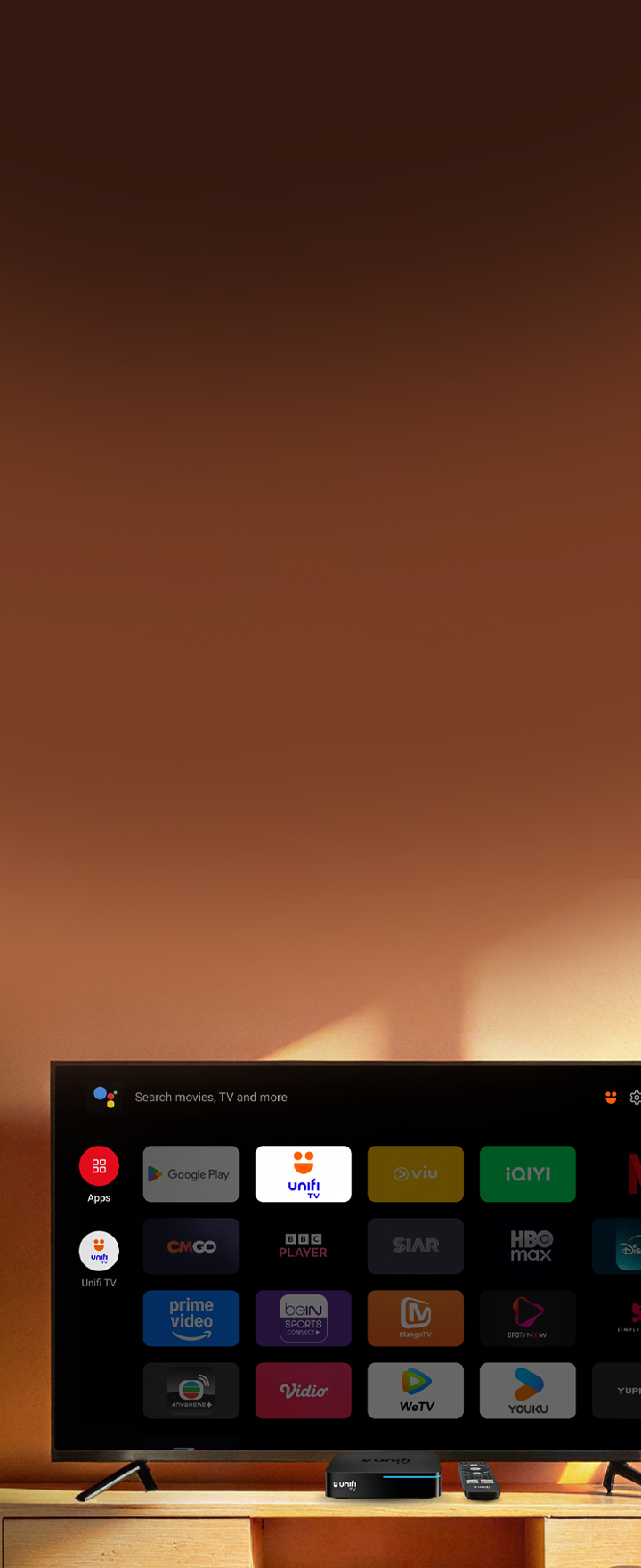
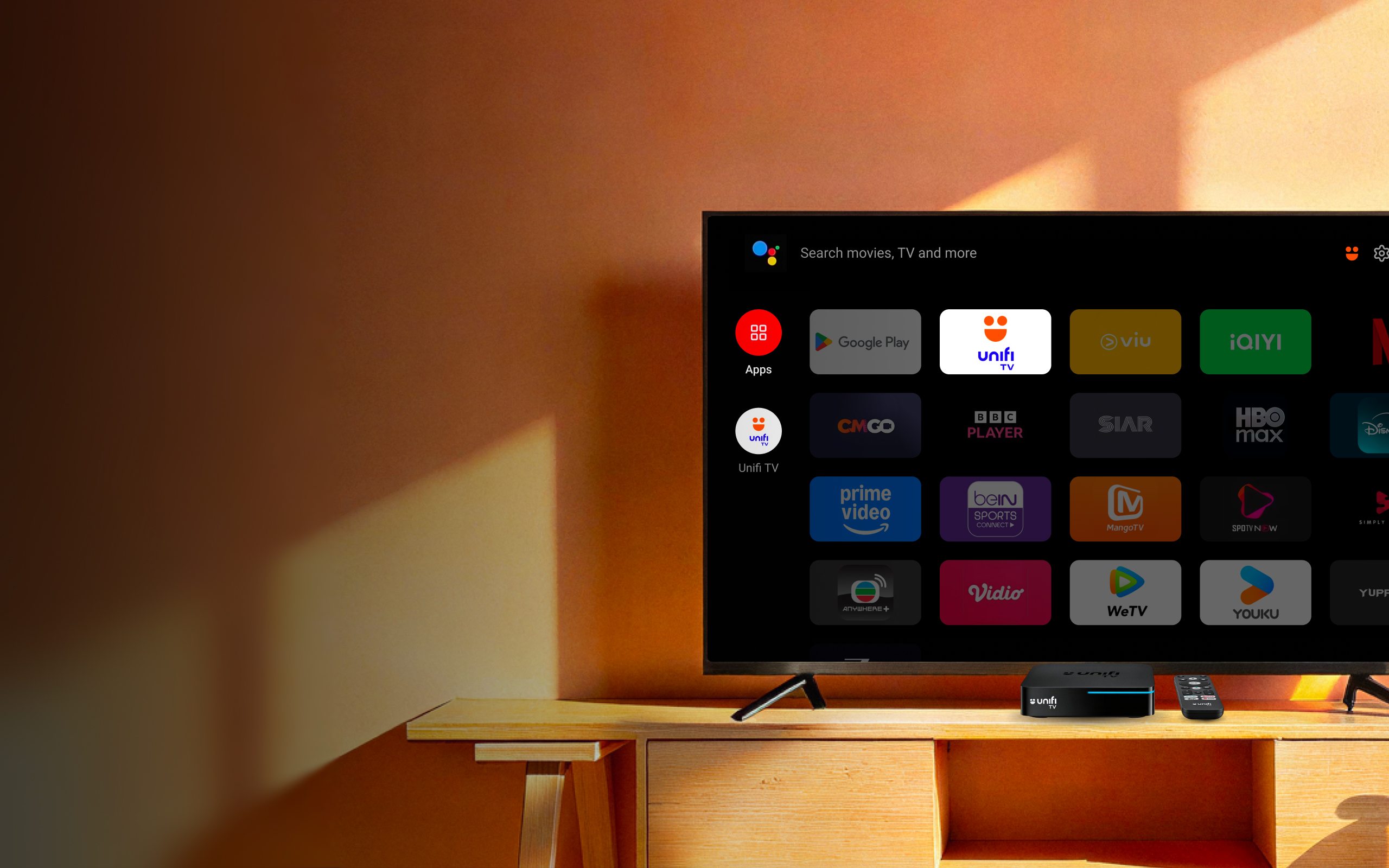
  • 70+ channels & 20+ streaming apps
  • Search easily by title, actor, or genre
  • Personalised recommendations for every profile
  • Stream across mobile, tablet, or TV Box
Learn More

Why You'll Love The New Unifi TV Platform

Unifi TV platform with content display

All-in-One Hub

Access 70+ premium channels & 20+ streaming apps–all in one place.

Universal Search

Find your favourite titles, actors, or genres across all platforms, effortlessly.

Just For You

Enjoy personalised content recommendations for every profile.

Stream On-the-Go Anywhere

Unlimited access across mobile phones, tablets, Android TV boxes & smart TVs.

Ready, Set, Stream

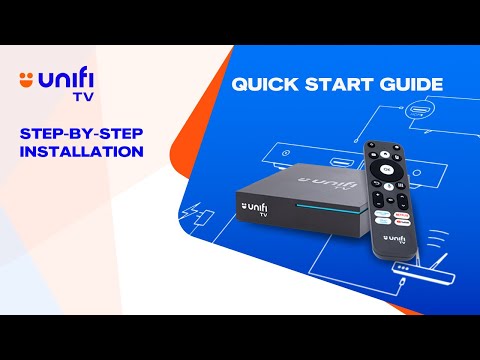
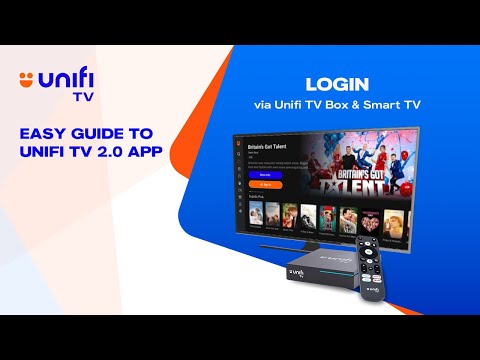
Browse our easy-to-follow video guides to get started.

More queries about the Unifi TV 2.0 App on mobile setup, password, or account settings?

Watch Video Tutorial

Two Apps to Get You Started

One app to manage your plan. Another to stream your favourite shows.

Two phones showing Unifi TV app screens

Can't find your favourite genre?

Frequently Asked
Questions

From 3 July 2025 onwards, you will see two (2) Unifi TV apps on the app stores:

▪ Unifi TV app: For existing Unifi TV subscribers (before 3 July 2025). Continue using this version until further notice.

▪ Unifi TV 2.0 app: For new Unifi TV subscribers (after 3 July 2025). If you are an existing subscriber, you will receive a notification from Unifi TV in phases starting July 2025 once your account is ready to upgrade and start streaming on the Unifi TV 2.0 app.
Starting 3 July 2025, all new Unifi TV customers will enjoy an upgraded entertainment experience through the latest Unifi TV platform, accessed via the brand-new Unifi TV app, "Unifi TV 2.0".

With this upgrade, you will enjoy the following exciting benefits:

▪ All-in-one access: Explore and access everything, from 70+ premium Unifi TV channels and over 20+ streaming apps—no need to switch between apps.

▪ Easy search: Find content across all other streaming apps using universal search by your favourite actor, title or genre.

▪ Personalised profiles: Get tailored recommendations for every viewer profile under your account.

▪ Watch anytime, anywhere: On Android TV boxes, mobile phones, tablets or smart TVs—your shows sync instantly across all devices.
Steps to set up your Unifi TV Box

Step 1: Turn on your TV and connect the Unifi TV Box to Wi-Fi. You will see an upgrade message on the screen — accept it and allow the upgrade process to run for a few minutes.

Step 2: If there are any issues, go to: Settings > Device Preferences > About > System Update. Once the software update is complete, restart your TV Box and download the Unifi TV 2.0 app from Google Play.

Step 3: Choose to log in using QR Code or your Unifi TV ID (not your email address). This ensures you can continue enjoying your Unifi TV subscription. You can find it on your Unifi bill (e.g., example@iptv).

Step 4: Set a new password for security.

Step 5: You can also download the Unifi TV 2.0 app on your mobile device or smart TV for added convenience.
Guide to set up your new Unifi TV Box

Step 1: Turn on your TV and connect your new Unifi TV Box to Wi-Fi.

Step 2: Allow the upgrade process to run for a few minutes.

Step 3: Choose to log in using QR Code or your Unifi TV ID (not your email address). This ensures you can continue enjoying your Unifi TV subscription. You can find it on your Unifi bill (e.g., example@iptv).

Step 4: Set a new password for security.

Step 5: You can also download the Unifi TV 2.0 app on your mobile device or smart TV for added convenience.
Step 1: DO NOT use your white/silver Unifi TV Box. It does not support the latest Unifi TV 2.0.

Step 2: Download the Unifi TV 2.0 app from the app store on your mobile device or smart TV.

Step 3: Log in using your Unifi TV ID (not your email address). This ensures you can continue enjoying your Unifi TV subscription. You can find your ID on your Unifi bill (e.g., example@iptv).

Step 4: Set a new password for security.
How do I start using Unifi TV 2.0?

Step 1: Download the Unifi TV 2.0 app from the app store on your mobile device or smart TV.

Step 2: Log in using your Unifi TV ID (not your email address). This ensures you can continue enjoying your Unifi TV subscription. You can find your ID on your Unifi bill (e.g., example@iptv).

Step 3: Set a new password for security.